Telegram instant messaging rarely has problems, but I once saw a business owner lose their supplier contacts because they didn’t back up their messages. Their account was restricted for using a VPN, leaving them with no way to recover their data.
Therefore, I think it is important to regularly back up your Telegram chats, regardless of the purpose. At the very least, learn how to store messages, export, save, and manage your chat history.
Standard chats are stored online, while secret chats stay only on your device. This means you could lose your online history if your account is hacked, or your private messages if you lose your phone. To avoid these issues, I will show you how to back up your chat history.
Save your chat data on Telegram
Method 1: Export Telegram Chats Using Telegram Desktop
The most complete backup solution is available through Telegram Desktop. Telegram provides a built-in export feature that allows users to download chat histories and media files.
However, the App Store version of Telegram lacks the chat export feature. This tool is only available on the official Telegram Desktop. If you cannot export your history, you will need to reinstall the official desktop version to access this function.
Step 1: Install Telegram Desktop
Visit Telegram’s official website and download Telegram Desktop. Log in using your Telegram account.
Step 2: Open Settings
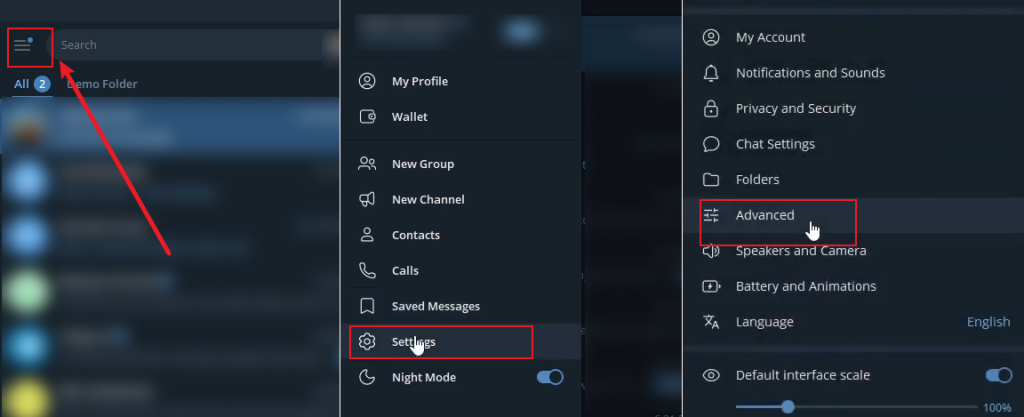
Inside Telegram Desktop: Click the menu > Settings > Advanced.
Step 3: Export Telegram Data
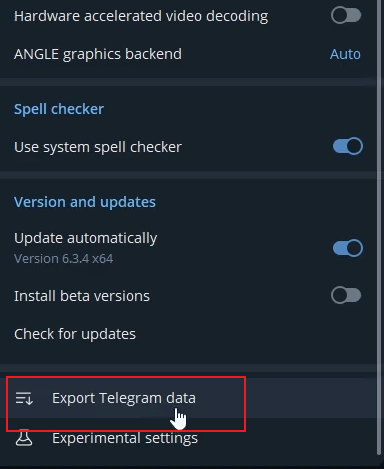
Scroll until you find: Export Telegram Data. Click the option to continue.
Step 4: Select Content
Choose which chats to export: All, Private chats, Groups, Channels, or select manually. Then, select the types of data: messages, photos, videos, documents, etc.
Step 5: Choose Export Format
HTML is best for easy browsing, while JSON is for developers or data analysis. You can also set a date range and file size limit.
Step 6: Start Export
Click Export. The process may take from minutes to hours, depending on your data volume.
Once completed, you’ll have a local backup stored on your device. The output will be saved in a folder like ~/Downloads/Telegram Desktop/.
Key Advantages:
- The only way to export your entire chat, including media and extra details, all at once.
- The generated index.html file lets you navigate your chats like a local website, with full search functionality.
- The JSON file allows for programmatic access to your data.
Limitations:
- Secret Chats cannot be exported as they are device-only.
- Requires a desktop computer.
Method 2: Save Individual Telegram Chats
Sometimes you don’t need a complete account backup. Instead, you may want to save a specific Telegram to chat.
- Open the Telegram Desktop app on your computer.
- Open the specific chat, group, or channel you wish to save.
- Click the three vertical dots (⋮) in the top-right corner.
- Select Export chat history.
- Check the boxes for the types of data you want to save: Photos, Videos, Voice Messages, and set a size limit.
- Choose the HTML format.
- Click Export.
Method 3: Save a few specific chat messages
Telegram does not have an automatic message saving function, so you can only save specific messages manually.
Copy Important Messages
For smaller conversations:
- Open the chat.
- Select messages.
- Copy the content.
- Paste into Word documents, Google Docs, Notepad, Notes applications
Forward Messages to Saved Messages
Telegram includes a personal cloud storage feature called Saved Messages.
- Select messages.
- Tap Forward.
- Choose Saved Messages.
This creates a private archive within your account.
Best For: Quickly saving important text, links, or media without leaving your phone. It’s perfect for curating a personal collection of valuable content.
Limitation: This is just a copy of messages, not a full backup of the entire chat. Organizing large volumes of data here can become messy. Need to be exported separately
Method 4: Using Telegram bots
Telegram APP doesn’t have its own tool to manage or save group messages, but you can use a Telegram bot to do it for you automatically.
- Group Message Collector: It automatically saves and organizes group chat messages and details in a database. This allows you to find information quickly and easily.
- Portex Save Message Bot: Portex also provides the functions of deleting and listing messages, but this requires certain technical skills.
- Botize bot: Offers multiple Telegram bots that can save Telegram messages to Google Sheets and copy them to other Telegram chats, groups, or channels. Suitable for e-commerce groups, but requires a subscription.
- Junction Bot: Supports copying large numbers of Telegram messages containing all files, including private chats.

Method 5: Download Media from Telegram Chats
If your primary concern is photos and videos, you can configure Telegram to save them to your device automatically.
- Go to Settings > Data and Storage > Storage Usage.
- Here, you can manually clear the cache or tap on specific chats to Save to Gallery for media.
- To turn on automatic saving, go to Settings > Data and Storage > Automatic Media Download and choose your Wi-Fi or mobile data settings.
Best For: Users who want to save photos and videos directly to their phones for quick access and cloud backups like iCloud or Google Photos.
Limitation: This only backs up media files, not the text messages, timestamps, or chat context.
Method 6: Third-party save tools
Some third-party tools offer the ability to save Telegram chat history.
- telegram-history-dump: A Ruby-based tool for backing up Telegram private and group chats.
- Telegram Video Downloader: It supports downloading videos from chats or groups, but only media files are supported; text chat is not included.
How to back up Telegram secret chats
You cannot save secret chats through normal means because they only stay on the device where they began. They are protected by a security key that never leaves that specific phone. Because of this, you cannot move these chats to a new device. If transferring them were easy, they wouldn’t be private. Additionally, screenshots often don’t work and will just appear blank.
I don’t recommend using other informal ways to save or share your secret chats, as they could make your secret messages public.
FAQ:
Q: Can Telegram X export chat history?
A: No, even download Telegram X app won’t allow you to export chat history. Only the TGdesktop has this chat history export function.
Q: I exported a chat, but some old pictures are missing. Why?
A: The export tool can only download media that still exists on Telegram’s servers. If the original sender deleted the image or video, or if it was automatically cleaned by a bot, the file may no longer be available for download.
Q: Are Telegram chats automatically backed up?
A: Most standard chats are stored in Telegram’s cloud and synchronize across devices.
Q: Can I restore exported Telegram chats into another account?
A: No. Exported files function as archives rather than importable chat histories.
Q: Will my Telegram account be banned if I use a VPN?
A: Normally this won’t, but if your account frequently switches between different IP addresses to log in, the official system will judge it as an unstable login environment and ban it.