Logging into Telegram used to mean grabbing your phone, typing in your number, and waiting for a verification code every time you switched devices. Today, telegram qr code login offers a far faster, more streamlined way to access your account across desktops, tablets, and secondary phones; all authenticated through your trusted primary device.
This guide breaks down exactly how the telegram qr code system works, how it pairs with your permanent phone number credentials, and step-by-step instructions for both the official Telegram app and Telegram X. We’ll also cover common troubleshooting fixes and security tips to keep your account safe. For a full breakdown of scanning contact codes, group invites, and other non-login QR scenarios, check our detailed guide on How to Scan QR Code in Telegram.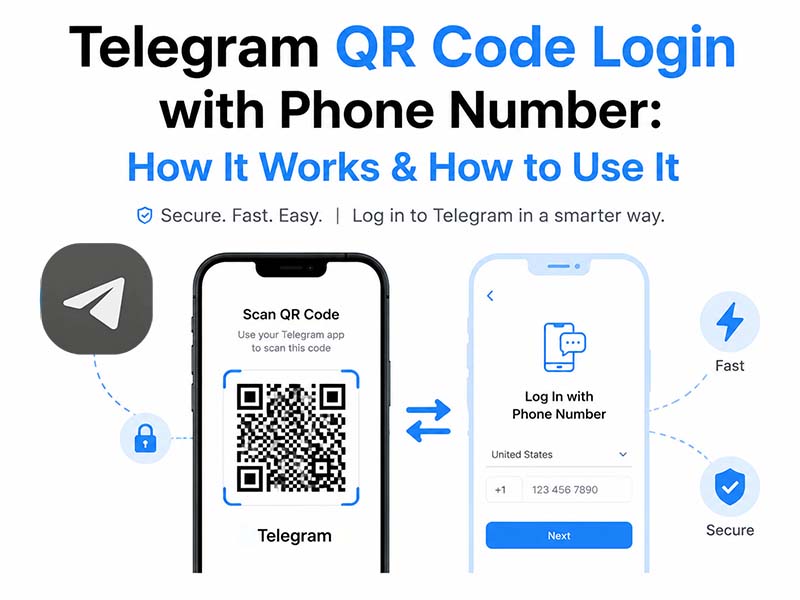
What Is a Telegram QR Code for Login
A telegram qr code is an encrypted, scannable graphic that carries temporary authentication data. For login purposes, it acts as a digital handshake between your primary mobile device and the new device you want to sign into. Instead of manually entering your phone number and verification code, a single scan with the built-in telegram qr code scanner authenticates your session in seconds.
Telegram generates unique, single-use QR codes for every login attempt, and each code expires after a short window to prevent unauthorized reuse. While login is the most widely used application, these codes also work for adding contacts and joining public groups and channels.
How Telegram QR Code Login Works
At its core, telegram qr code login is a device-to-device authentication method. The primary smartphone you use to log in to Telegram with your phone number for the first time will serve as a trusted authorizer for your account. The QR code itself does not contain your phone number or private data; it only carries a temporary encrypted request token.
Here’s the simplified process:
- The new device generates a unique, time-limited QR code locally.
- You open the telegram qr code scanner on your primary mobile app.
- Your phone reads the code, validates the login request with Telegram’s servers, and sends approval.
- The new device receives secure access tokens and syncs your chats, channels, and account settings.
Crucially, your phone number remains the permanent root identifier of your account. QR login does not replace phone number verification. It simply skips manual entry for secondary devices once you already have an active trusted session.
How to Access the Telegram QR Code Scanner
The exact path to the scanner depends on which mobile app you use. Below are instructions for both the standard Telegram app and Telegram X.
Official Telegram App
- Open the Telegram app on your primary smartphone.
- Tap the hamburger menu icon in the top-left corner.
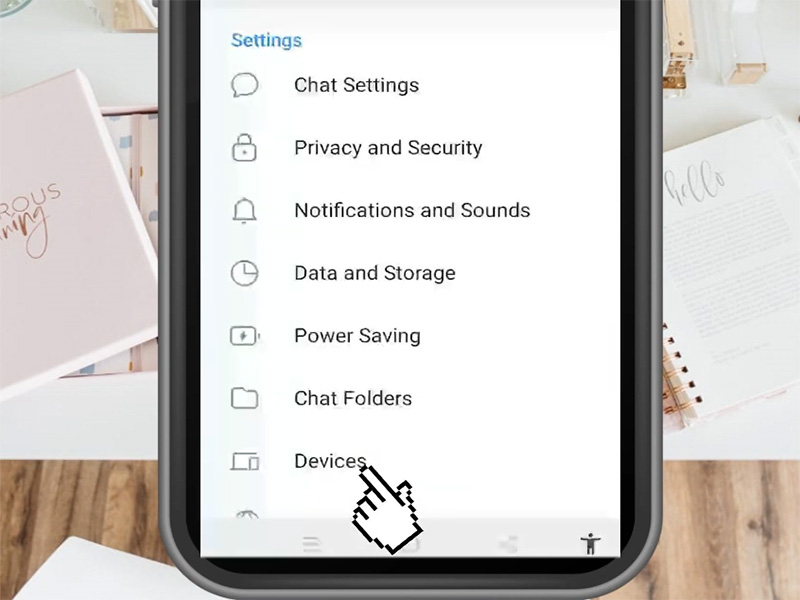
- Select Settings, then choose Devices.
- Tap Link Desktop Device to launch the telegram qr code scanner.
Telegram X
Telegram X offers optimized scanning speed and extra security features for telegram qr code login. To access its scanner:
- Launch the latest version of Telegram X.
- Open the side menu and navigate to Settings > Devices.
- Select Scan QR Code.
- For even faster access, long-press the search bar on the main chat screen and choose Scan QR Code from the pop-up menu.
Telegram X also includes exclusive features like offline scanning for contact and group codes, plus a private scan history that lets you review and revoke device access later.
Step-by-Step Telegram Sign In via QR Code
Once you know how to open the scanner, completing telegram sign in on any secondary device takes just a few seconds.
Telegram Web & Desktop
This is the most common use case for telegram qr code login.
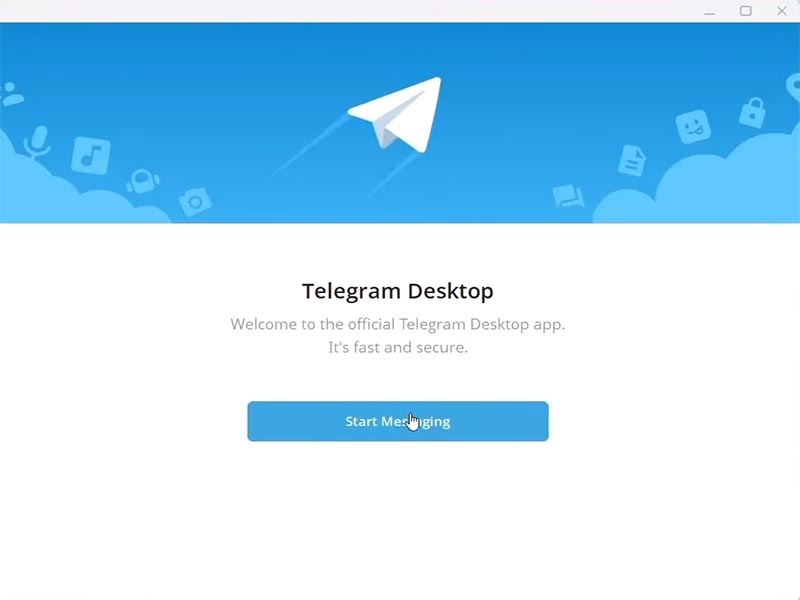
- On your computer, open Telegram Desktop or navigate to the official Telegram Web portal.
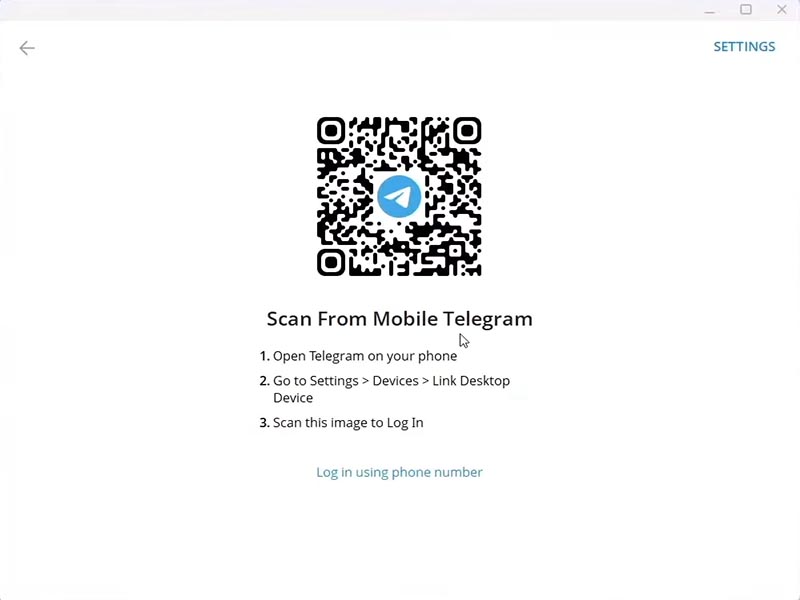
- On the welcome screen, select the Scan QR Code option to display a fresh telegram qr code.
- On your primary phone, open the telegram qr code scanner following the steps above.
- Point your phone camera at the code on your computer screen, keeping it centered in the frame.
- When prompted on your phone, confirm the login request.
Within one to two seconds, your desktop or web session will activate, and your full message history will sync.
Secondary Phone or Tablet
You can also use QR login to add a second mobile device to the same account.
- Install Telegram on the secondary device and open the welcome screen.
- Select the Log in with QR code option to display a code.
- On your primary phone, open the scanner and scan the code on the secondary device.
- Confirm the request to complete setup.
Both devices will run your account simultaneously, with real-time message sync across all sessions.
When You Still Need Your Phone Number
QR login is convenient, but it cannot replace your phone number for all telegram sign in scenarios. You will need to verify with your phone number directly when:
- You are creating a brand-new account and signing in for the very first time.
- You have logged out of all active sessions and no trusted device remains available.
- You are changing the phone number linked to your Telegram account.
- The QR code expires before you can scan it, and you do not have access to refresh it from another device.
In these cases, simply enter your phone number, receive a verification code via SMS or in-app message, and proceed normally. Once you have one active session, you can return to using telegram qr code login for all additional devices.
Phone Number Login vs. QR Code Login: Key Differences
Phone number login is the universal, standalone method: it works on any device, anywhere, with nothing more than your number and a verification code. It is required for account creation and recovery, and it does not depend on any other logged-in device.
Telegram qr code login, by contrast, is a secondary convenience feature. It is much faster, usually under two seconds per scan, and reduces the risk of typos when entering your number. It does require an already active session on your primary phone, and it cannot be used for first-time account setup.
For daily use on a desktop or shared tablet, the QR method is almost always the better choice. For account recovery or brand-new sign-ups, phone number verification remains the foundation of Telegram’s authentication system.
Troubleshooting Common Telegram QR Code Issues
- QR code will not scan: Clean your camera lens, ensure even lighting on the screen, and hold your phone steady so the full code fits inside the scanner frame. If scanning a monitor, try increasing screen brightness or moving your phone slightly farther away.
- Code keeps expiring: Every telegram qr code has a short lifespan for security. If you take too long, refresh the login page on the new device to generate a fresh code. Confirm both devices have a stable internet connection.
- Scanner will not open: Check your system settings to make sure Telegram has camera permission enabled. If the option is missing, update your app to the latest version.
Security Tips for Telegram QR Code Login
While telegram qr code login is secure by design, a few simple habits will keep your account even better protected.
- Only scan codes displayed on official Telegram apps. Phishing sites can show fake QR codes to attempt unauthorized account access.
- Review your active sessions regularly in the Devices menu. Terminate any session you do not recognize. Telegram X users can also check their private scan history for extra visibility.
- Enable two-step verification in your account settings. This adds a password layer that protects your account even if someone gains physical access to your phone.
- Always log out of Telegram Web on public or shared computers. For extra safety, you can terminate the session remotely from your mobile device later.
- If you use Telegram X, take advantage of its real-time login alerts. Any attempt to scan a login QR code will trigger a prompt on your phone, so you can deny suspicious requests instantly.
Final Thoughts
The telegram qr code system is a small but impactful quality-of-life feature that makes multi-device Telegram use far smoother. Instead of typing your phone number and waiting for a code every time you sit down at your computer, one quick scan with the telegram qr code scanner gets you straight to your chats.
Telegram qr code login works best as a companion to your phone number, not a replacement. Your number remains the permanent key to your account, while QR codes provide a fast, secure shortcut for desktop, web, and secondary device access. For users who want extra speed and security features, Telegram X takes the experience even further with optimized scanning and built-in login safeguards.